

Korea travel apps cover different tasks: local navigation, Korean–English translation and taxi requests. The Korea Tourism Organization’s Helpful Apps & Resources includes NAVER Map, Papago and k.ride; this guide focuses on installing the right apps, setting their language and preparing accounts and saved information before departure.
1. Preparing Your Phone for Korea Travel Apps
Start with four apps to consider, not four compulsory installations: NAVER Map, KakaoMap, NAVER Papago and k.ride. The first two cover navigation, Papago handles translation, and k.ride provides taxi requests and payment.
Choose a primary map app and decide whether a second map or a taxi app serves your actual transport plans. A translation app has a separate purpose even when your map supports English.
Check the publisher before downloading. NAVER Map and Papago are published by NAVER Corp.; KakaoMap is published by Kakao Corp.; k.ride is published by Kakao Mobility Corp.
These are distinct applications, and k.ride is not the same download as Kakao T. Follow the official store links below rather than choosing an app solely because its name contains “Korea,” “map” or “taxi.”
Check compatibility on the phone you will take. The current iPhone listings require iOS 16.0 or later for NAVER Map, iOS 17.0 or later for KakaoMap and Papago, and iOS 15.0 or later for k.ride.
These are iPhone requirements, not Android requirements. Use Google Play’s compatibility result for your Android device, and install while you still have time to resolve an operating-system or storage issue.
Installation is only the first check. Open each selected app, confirm that the interface is usable in English, and try the feature you expect to need.
A downloaded app does not establish that an account, language pack or payment method is ready. Complete that preparation on your own device; there is no need to request a taxi as a test.

2. Choose Apps by Their Purpose
NAVER Map (네이버 지도)
KTO describes route suggestions, estimated journey times and bookmarks. NAVER’s own help explains that saved places, routes and public-transport information require a NAVER login. Its store listing includes English, Korean, Japanese and Simplified Chinese. Choose it when you want a map with an officially documented English-language setting and an account-based collection of saved information.
KakaoMap (카카오맵)
Kakao’s service page documents routes for public transport, walking, cycling and driving. Its iPhone listing identifies English and Korean as supported languages. It can serve as your chosen map or a second map to consult, but this is not a ranking of route accuracy.
For the separate route-search and navigation discussion, see KakaoMap vs Naver Map Korea.
NAVER Papago (파파고)
Papago supports text, speech and image translation; NAVER documents offline use separately. Set English and Korean as the translation pair and test a short sentence. Interface language and translation language are different settings: an English interface does not itself select Korean as the output language.
k.ride
Kakao Mobility documents an English interface, translated driver chat, destination search and automatic payment by registered credit or debit card or supported mobile payment. KTO also states that overseas credit cards can be used and lists registration by phone number, email, Google or Apple account.
Prepare the account rather than learning the sign-in requirements at a pickup point.
Use these official download listings. The publisher names above are the identity checks; titles may differ slightly between stores.
NAVER Map: iPhone and iPad or Android.
KakaoMap: iPhone and iPad or Android.
NAVER Papago: iPhone and iPad or Android.

3. Set Up Before You Fly
Set NAVER Map to English
On Android, NAVER specifies the MY profile icon at the top right, then the settings gear, then Language. On iOS, the language option leads to the device’s NAVER Map settings and Preferred Language.
If that option is missing, NAVER directs iOS users to add a supported language under Settings, General, Language & Region. The official language help includes English instructions; do not copy the Android route as though it were identical on iPhone.
Sign In and Save Arrival Information
If you intend to use NAVER Map bookmarks, sign in before creating the collection. NAVER explicitly requires a logged-in NAVER account to save and use saved information.
Add your arrival airport, the exact station named on any transport reservation, and your first arrival address. Give entries a short label and, where useful, a note or related URL; NAVER’s saving help documents these fields.
Keep a separate note containing the same essential information in English and Korean, copied from your booking or the responsible operator. This is a preparation suggestion, not a promise that either map downloads offline.
For KakaoMap, test the saving function on your own installation before relying on it; this guide does not assume that NAVER’s account requirements apply to KakaoMap.

Download Papago’s Offline Language Packs
NAVER’s current offline translation help supports English and Korean among its offline languages. Text translation requires at least 4 GB RAM on Android; offline voice translation additionally requires Android 14 or later and an extra voice-only language pack.
On iOS, the help specifies at least 4 GB RAM for offline text and voice translation. App installation compatibility and offline-feature compatibility are therefore separate checks.
Download the packages you need while connected, then test a short English–Korean text translation without a network connection. If you also need offline voice translation, test that feature separately.
Image, conversation, website and document translation are not included in the documented offline service. Do not treat the downloaded package as an offline version of every Papago feature.
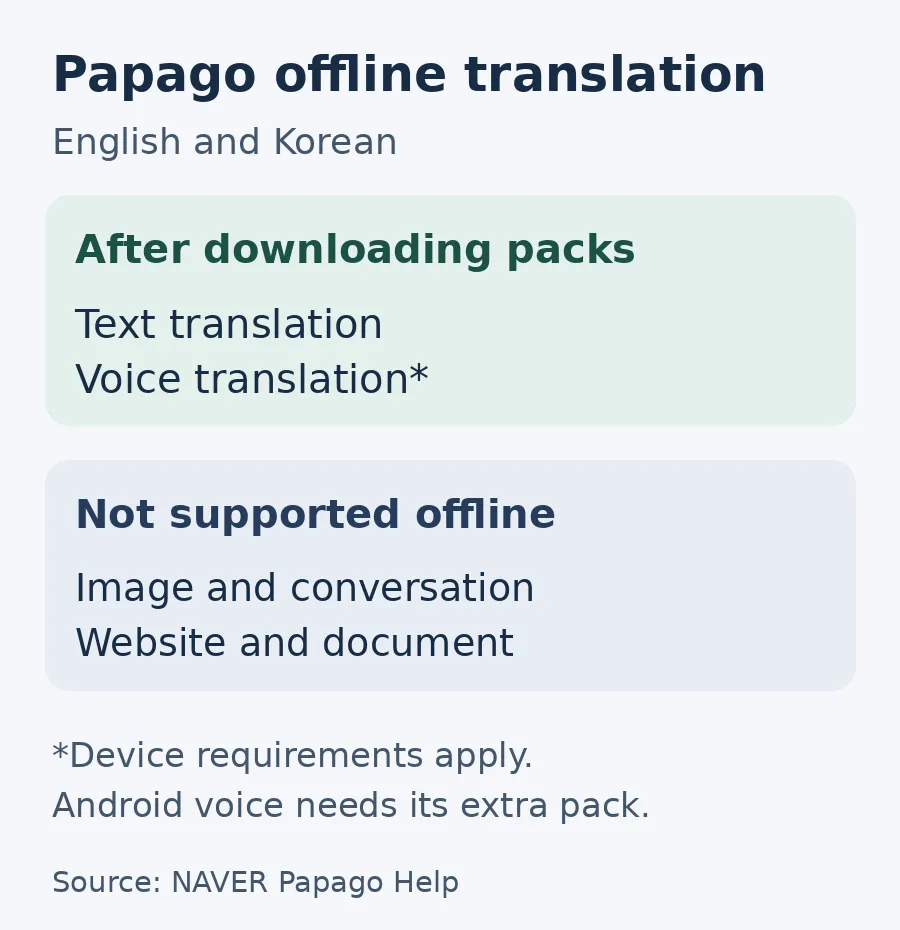
Original explainer based on NAVER Papago’s offline translation help; device requirements are explained above.
Prepare Your k.ride Account
Choose a registration method offered in your installation and check that you can access the associated account or verification channel. Review the payment-registration screen if you plan to pay through the app.
Official support for overseas cards is not a guarantee that every individual card will be accepted; resolve any rejection through the app’s support rather than assuming the installation is complete.
4. Practical Tips and Limitations
An English interface does not mean every piece of content is English. NAVER’s language help specifically says its Place Agent answers are provided only in Korean. Keep original Korean names and the full address alongside translated labels. Translation should help you understand the information, not replace the exact identifier on a ticket or confirmation.

Review permissions by function. NAVER Map’s listing links location access to showing your position and directions. Papago lists microphone access for voice features and camera access for taking translation images. k.ride’s Android listing identifies location as essential, while phone-number access, messages and notifications are optional permissions. “Optional” access to messages is not a statement that every registration method avoids verification.
Test the permission-dependent feature rather than approving every request automatically. For example, try Papago’s camera translation if you expect to use it, and check that your chosen map can show your current position. Read the explanation on your own platform: permission names and settings need not match between Android and iOS.
Keep the KTO resources page bookmarked as a reference for official travel information and download links. There is no need to install every app it lists.
This preparation guide does not cover restaurant reservations, shopping, attraction bookings or accommodation searches, and a map’s booking tab should not be taken as evidence that every booking is available to every foreign visitor.
5. Frequently Asked Questions
Which apps should I install before travelling to Korea?
Choose NAVER Map or KakaoMap for navigation and Papago for Korean–English translation. Add k.ride if you plan to request taxis through an app. Installing both maps is an option, not a requirement; the useful preparation is testing your selected apps and saving the information you will need.
Do I need a Korean phone number for these apps?
Do not assume a Korean number is universally required. KTO lists phone, email, Google and Apple registration options for k.ride, while NAVER specifies a NAVER login for saved map information. Complete the method offered to you before departure; these sources do not establish one universal verification process for all four apps.
Can Papago work without mobile data?
Its documented offline service supports text and voice translation after downloading the relevant packages, subject to device requirements. Android offline voice also needs a separate voice pack and Android 14 or later. Image and conversation translation are not included, so test the exact offline function you need.
Are the English settings the same on iPhone and Android?
No. NAVER’s Android instructions use its in-app Language setting, while the iOS instructions involve the device’s NAVER Map Preferred Language setting. Follow the help for your platform rather than a menu sequence from another phone.
What information should I save before departure?
Keep the arrival airport, transport station names, your first arrival address and relevant booking references together. Retain original Korean names where provided, and make a separate note rather than relying only on map bookmarks. NAVER’s saved information requires a logged-in account; saved places are not a verified offline-map download.

Keep a small contact note alongside these apps: 119 for fire, accidents and rescue; 112 for police crime reports; 1330 for tourist information; 1345 for immigration information; 110 for government-service enquiries; and BBB Korea 1588-5644 for volunteer telephone interpretation. These are Korean contact numbers, not a promise that a data-only connection can place calls.
Prepare Your Connection Before Departure
Internet access is a separate decision from preparing your Korea travel apps. For the connection options, read the Korea SIM card and eSIM guide. For taxi use beyond account preparation, see the Korea taxi guide.
Sources & References
Korea Tourism Organization: Helpful Apps & Resources — page states August 2026 update.
NAVER Map: platform-specific language settings; saved information and login requirement.
NAVER Papago: offline packages, device requirements and exclusions.
Kakao Mobility: k.ride languages, driver chat and payment. Official Apple and Google download listings are linked in section 2.
Korean National Police Agency: contact numbers; Korea Immigration Service: 1345; Government Call Center 110; BBB Korea: telephone interpretation.
Last verified: October 7, 2026. App compatibility, menus, account requirements and payment options can change; consult the linked operator help and the listing for your device before departure.
Image Credits
Seoul smartphone use: noo jang / Unsplash.
Phone testing: Jonas Leupe / Unsplash.
Android devices: The Average Tech Guy / Unsplash.
Paper checklist: Glenn Carstens-Peters / Unsplash.
Preparation workspace: JESHOOTS.COM / Unsplash.
Telephone communication: Swello / Unsplash.
Original Papago offline-translation explainer: TripKorea, based on the linked NAVER help.